

7 Chevrolet Infotainment Features You May Not Know About
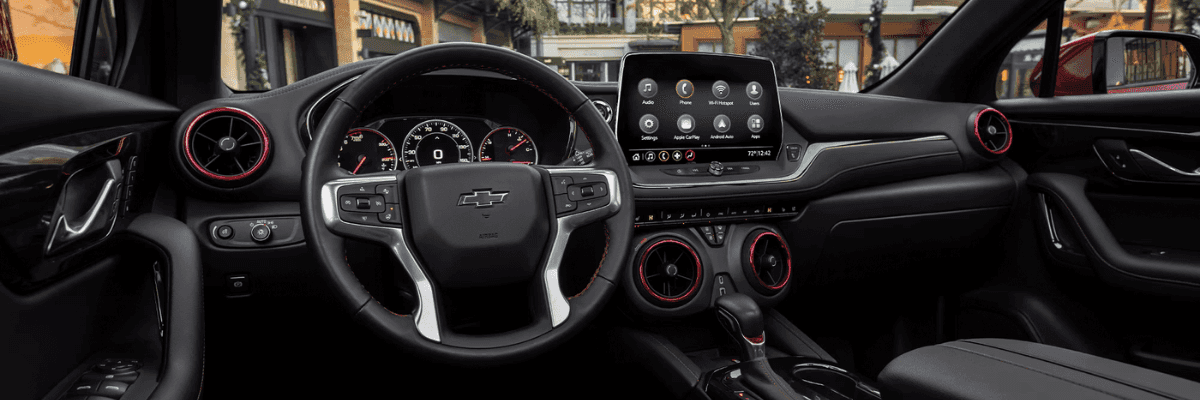
Modern Chevrolet infotainment features can do much more than play music or display a map. Depending on the model and equipment, your system may let you rearrange screen icons, create shortcuts, save driver preferences, connect your phone wirelessly and use compatible apps directly through the vehicle.
Some of these tools are easy to overlook during a short test drive. Here are seven Chevrolet infotainment features worth exploring before choosing your next vehicle at DeFOUW Chevrolet in Lafayette, Indiana.
What Can a Chevrolet Infotainment System Do?
Depending on the vehicle, your Chevrolet infotainment system may provide smartphone integration, Bluetooth connectivity, voice assistance, navigation, audio controls, customizable shortcuts and individual driver profiles.
Features and screen layouts vary between vehicles, so always check the equipment included on the specific Chevrolet you are considering.
1. Rearrange the Home Screen Icons
You do not have to leave the infotainment Home screen in its original layout. On compatible Chevrolet systems, you can press and hold an app icon, drag it to a new location and release it where you want it.
This lets you move the features you use most often closer to the first page. For example, you might place Audio, Phone, Maps or Settings within easy reach while moving less frequently used icons to another page.
2. Create Quick-Access App Shortcuts
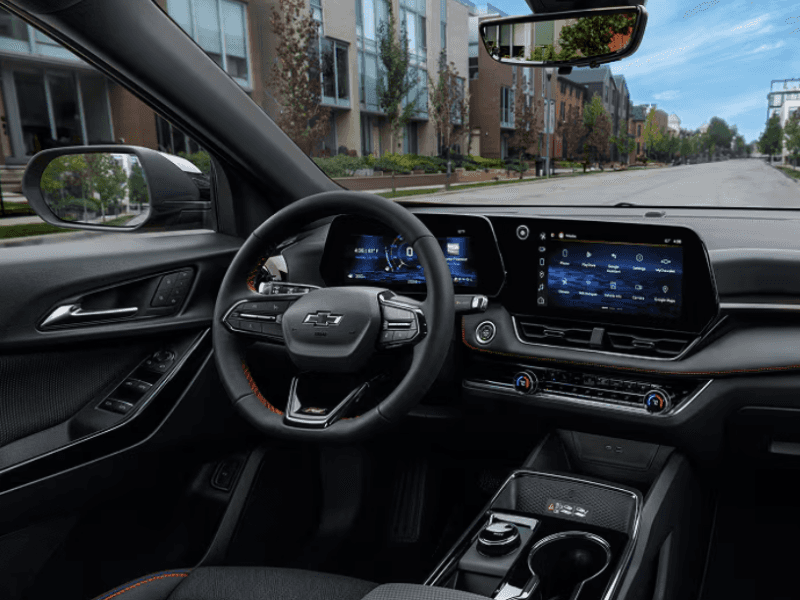
Some Chevrolet infotainment systems include an App Tray that remains visible while you move between screens. Compatible systems let you drag favorite apps into this tray to create quick-access shortcuts.
This can be especially helpful if you regularly switch between navigation, audio, phone controls and vehicle settings. Adding an app to the tray creates a shortcut, so the original app icon can remain on the Home screen.
3. Save Audio Favorites from Different Sources
Your saved audio favorites are not necessarily limited to traditional radio stations. Depending on the system and available audio sources, you may be able to save favorites from different listening options in one convenient area.
When you find a station or selection you want to keep, look for the Star icon or an available favorite space. On compatible systems, pressing and holding an empty favorite position can save the current audio selection.
This can make it easier to move between preferred stations and audio sources without searching through several menus each time you drive.
4. Connect with Apple CarPlay or Android Auto
Compatible Chevrolet vehicles may offer Apple CarPlay or Android Auto integration. These features allow supported smartphone apps to appear on the vehicle’s center display.
Apple CarPlay
Apple CarPlay can provide access to compatible navigation, calling, messaging and music features from an iPhone through the center display.
Android Auto
Android Auto can provide access to compatible navigation, calling, messaging, media and Google Assistant features from an Android phone.
Some Chevrolet vehicles support a wired connection through a USB data port, while select vehicles and compatible phones may support wireless phone projection. The vehicle must be in Park during the initial connection process.
5. Use Google Built-In Without Projecting Your Phone
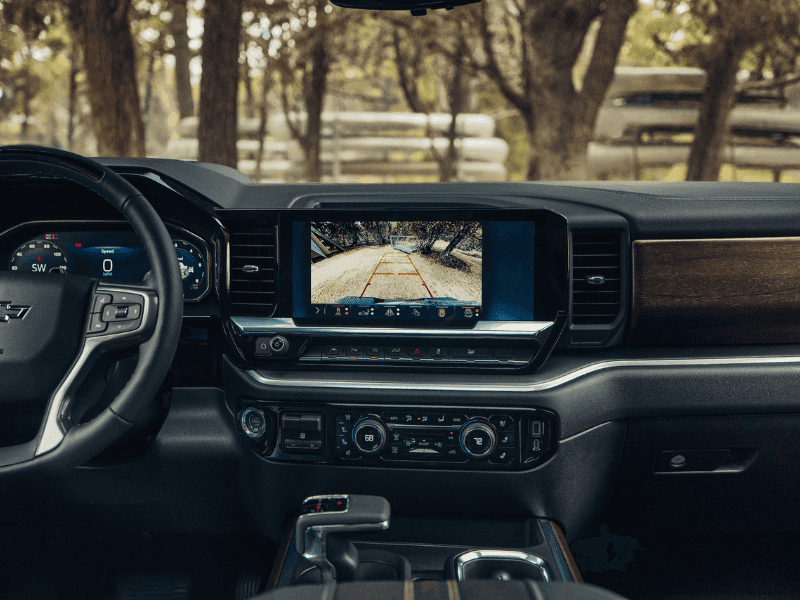
Google built-in and Android Auto are not the same feature. Android Auto projects compatible apps and functions from your phone. Google built-in places compatible Google services directly within the vehicle’s infotainment system.
On properly equipped Chevrolet vehicles, Google built-in may provide access to:
- Google Maps for navigation
- Google Assistant for compatible voice commands
- Google Play for available in-vehicle apps
- Saved locations connected to your Google Account
A Google Account is optional, but signing in can create a more personalized experience. Certain connected features may require an eligible service plan or trial, and third-party apps may require separate accounts or subscriptions.
6. Create Separate Profiles for Different Drivers
If more than one person drives the vehicle, separate infotainment profiles can help keep preferences organized. On select systems with Google built-in, up to eight profiles may be stored.
A profile can help the system remember compatible preferences such as saved audio favorites, paired phones and other personalized settings. Drivers can select their profile when entering the vehicle instead of changing the same settings repeatedly.
A guest profile may also be available, but settings and favorites used under the guest profile may reset the next time the vehicle starts.
7. Use Voice Assistance for Calls, Directions and Messages
Voice assistance can reduce the need to search through menus while driving. Depending on the vehicle, connected phone and available technology, you may be able to use a steering-wheel Push-to-Talk button or a supported hands-free prompt.
Compatible voice functions may help you:
- Call a saved contact
- Ask for directions
- Choose music or an audio source
- Check compatible calendar information
- Hear and respond to supported notifications
On compatible systems with Google built-in, Google Assistant can be enabled to read new text-message notifications aloud. Drivers must enable the appropriate notification permissions before using this feature.
Phone Projection vs. Google Built-In
Apple CarPlay or Android Auto
How it works: Connects a compatible smartphone to the vehicle.
- Uses supported apps from your phone
- May connect through USB or wirelessly
- Uses Siri or Google Assistant through the phone
- Requires a compatible phone and software
May be a better fit for: Drivers who prefer the apps and settings already stored on their phone.
Google Built-In
How it works: Places compatible Google services directly in the vehicle.
- Uses Google Maps through the infotainment system
- Provides compatible Google Assistant functions
- May download available apps through Google Play
- Some features require an eligible service plan
May be a better fit for: Drivers who want navigation and compatible apps built directly into the vehicle experience.
What Should You Do If Your Phone Will Not Connect?
Many connection concerns can be resolved without replacing equipment. Chevrolet recommends checking the phone and vehicle settings before requesting additional assistance.
- Make sure your phone software is current
- Check for available vehicle software updates on applicable models
- Confirm Bluetooth and Wi-Fi are enabled when using a wireless connection
- Make sure Apple CarPlay or Android Auto is enabled in the vehicle settings
- Use the correct USB data port and a compatible cable for wired connections
- Delete the phone from the vehicle and remove the vehicle from the phone’s paired-device list
- Restart the phone and vehicle before pairing them again
On applicable vehicles, software information may be found by opening Settings, selecting System and looking for Vehicle Software or Updates. Menu names and locations may vary.
Which Chevrolet Infotainment Features Matter Most?
The best technology package depends on how you drive. A daily commuter may prioritize wireless smartphone integration and audio controls. A family sharing one vehicle may benefit from separate driver profiles. Someone who travels frequently may prefer built-in navigation and voice assistance.
Before selecting a vehicle, consider which features you expect to use every day:
- Do you use an iPhone or Android phone?
- Do multiple people regularly drive the vehicle?
- Would you prefer phone projection or built-in apps?
- Do you want navigation displayed on the center screen?
- Do you need wireless charging or additional USB ports?
- Would a larger infotainment display be easier for you to use?
You can compare available screen sizes, phone compatibility and connected features while browsing the new Chevrolet inventory at DeFOUW Chevrolet.
Test the Technology Before Choosing Your Chevrolet
A hands-on demonstration can help you understand the differences between infotainment systems. Bring your phone when visiting DeFOUW Chevrolet so you can review compatibility, screen layout, voice controls and available connected features on the specific vehicle.
Frequently Asked Questions
Do all Chevrolet vehicles have the same infotainment system?
No. Screen size, menu layout, smartphone integration, built-in apps and connected features vary by model, model year, trim and optional equipment.
Does Chevrolet offer wireless Apple CarPlay and Android Auto?
Wireless Apple CarPlay and wireless Android Auto are available on select Chevrolet vehicles when used with compatible smartphones. Other vehicles may require a wired USB connection.
Is Google built-in the same as Android Auto?
No. Android Auto projects compatible features from an Android phone. Google built-in places compatible Google services, such as Google Maps and Google Assistant, directly within the vehicle’s infotainment system.
Does Google built-in require a phone?
Google built-in is integrated into the vehicle, so compatible built-in functions do not rely on phone projection. Some services require an eligible connectivity plan, a Google Account or a separate third-party subscription.
Can more than one driver save an infotainment profile?
Yes, on select Chevrolet systems. Some systems with Google built-in can store up to eight profiles, allowing different drivers to save compatible preferences.
Why will my phone not connect to Chevrolet infotainment?
Check that Bluetooth, Wi-Fi, Apple CarPlay or Android Auto are enabled as needed. Update the phone and applicable vehicle software, remove the old pairing from both devices and then pair the phone again.
Feature availability and functionality vary by vehicle, model year, trim, equipment, compatible device, software version and active service plan. Some apps and services require separate accounts, data plans or paid subscriptions. Always review the specific vehicle equipment and Owner’s Manual. Additional information is available through Chevrolet infotainment support and Chevrolet Google built-in support.
Find a Chevrolet with the Technology You Want
Tell DeFOUW Chevrolet which models, screen features or smartphone connections you prefer, and the team can help identify available vehicles that match your needs.

0 comment(s) so far on 7 Chevrolet Infotainment Features You May Not Know About